How to scan documents with your phone so the PDF stays small and still readable
Your phone captures each page at far more resolution than text needs, which is why three scanned sheets can top 5 MB. Here's which filter to pick, how to scan on iPhone and Android, and what to do when the PDF already exists and doesn't fit.
By Robert Bzia7 min read
Your phone has become the household scanner. The trouble starts when you upload the result: the form wants the contract, the payslip and your ID in 2 MB at most, and the four pages you've just scanned weigh 9 MB. You haven't done anything wrong; the camera simply captures far more information than a sheet of text needs.
In this guide we explain where that size comes from, which setting cuts it the most without it showing, how to scan step by step on iPhone and Android, and what to do when the PDF already exists and doesn't fit. The steps for Notes, Files and Google Drive and the retirement of Microsoft Lens were checked in October 2026 against the official documentation from Apple, Google and Microsoft, which we cite at the end.
Why a document scanned with your phone is so large
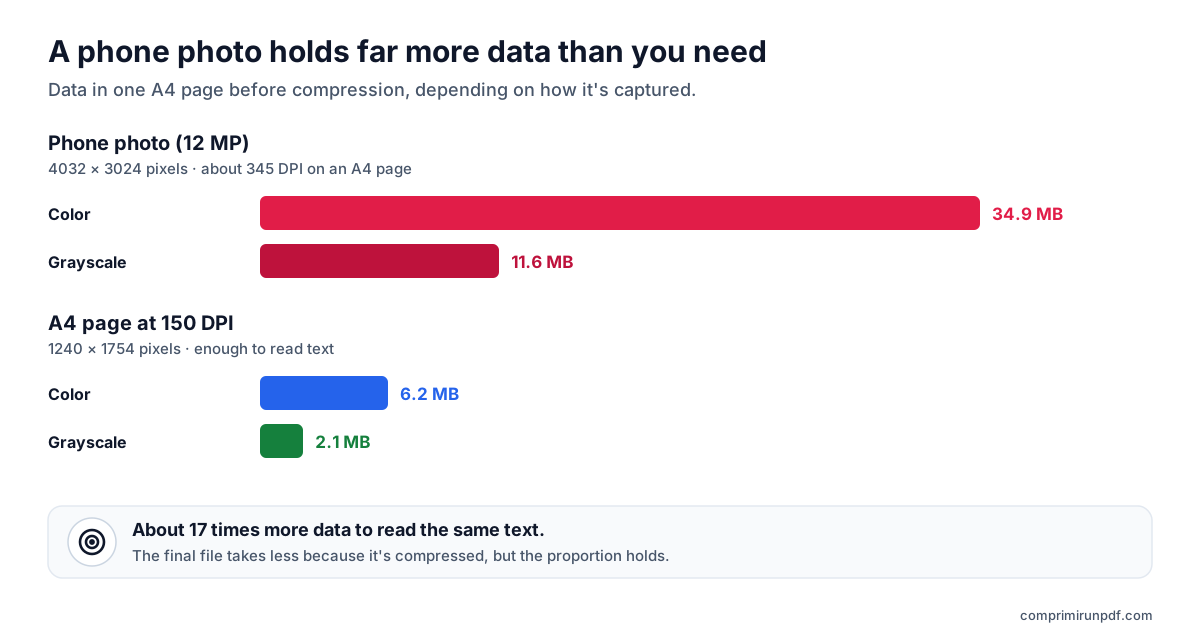
A mid-range phone camera takes 12-megapixel photos (4032 × 3024 pixels). If an A4 page fills the frame, those pixels are like scanning it at about 345 DPI, more than twice what you need: 150 DPI is enough for text to look sharp on screen and on paper, as we explain in the guide on why a PDF is so large. And if the page is saved in color, each dot takes three times as much as in grayscale.
| How it's captured | Pixels | Color | Grayscale |
|---|---|---|---|
| 12 MP phone photo | 4032 × 3024 (12.2 MP) | 34.9 MB | 11.6 MB |
| A4 page at 150 DPI | 1240 × 1754 (2.2 MP) | 6.2 MB | 2.1 MB |
The final file takes far less than those figures, because the images are compressed as JPEG, but the proportion holds: the color photo has about 17 times more data than the page at 150 DPI in grayscale, and to the naked eye the text reads the same in both. Scanning apps crop and straighten the page, but the resolution they save it at is up to each app and can hardly ever be chosen. What you do control is color, light and framing.
The setting that changes the size most: the filter
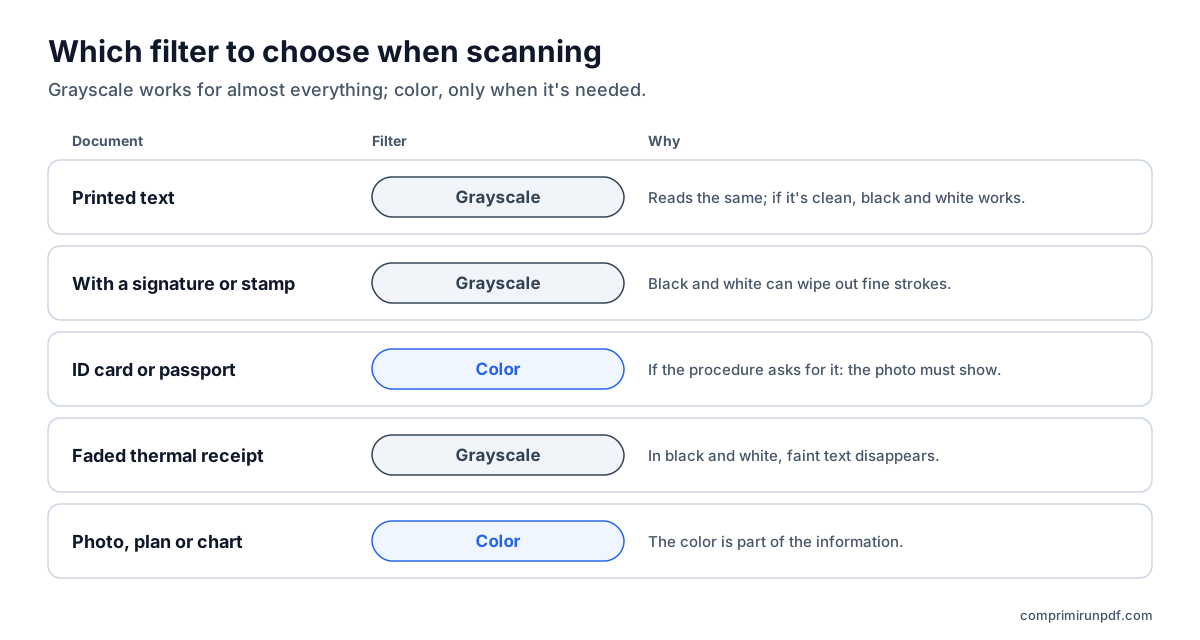
The scanner in Notes and Files on iPhone offers four filters: Color, Grayscale, Black & White and Photo. Google Drive also lets you change the filter of each page after capturing it. Choosing well is the most effective thing you can do: before compression, a page in grayscale has a third of the data it has in color. After compression the real saving is smaller, but it's usually noticeable, and a text document reads exactly the same.
| Document | Filter | Why |
|---|---|---|
| Printed text: contract, letter, certificate | Grayscale, or black and white if it's clean | It reads the same and weighs much less |
| With a signature or stamp | Grayscale | Black and white can wipe out fine strokes |
| ID card, passport or driving licence | Color, if the procedure asks for it | The photo and security colors have to be visible |
| Faded thermal-paper receipt | Grayscale | Faint text disappears in black and white |
| Photo, plan or chart in color | Color or Photo | The color is part of the information |
Be careful with black and white: it turns every dot into pure black or white based on a threshold. With crisp printed text it gives a clean, light result, but a blue ballpoint signature, a stamp or a faded receipt can come out half-missing or vanish. If you use it, zoom in on the result before saving.
How to scan on iPhone or iPad with Notes or Files
Both apps use the same scanner. These are the steps in Notes, according to Apple's help:
- Open Notes and create a new note or open an existing one.
- Tap the attachment button and choose Scan Documents.
- Before capturing, tap the filters button and choose Grayscale. Depending on your iOS version, the button is at the top or in the bottom bar.
- Place the page in the frame. In automatic mode it captures by itself; otherwise, tap the shutter or press a volume button.
- Adjust the corners if needed, add the other pages and tap Save when you're done.
The scan stays inside the note; to send it as a PDF, open it and use Share. If you want a file straight away, use the Files app: go to the folder where you want to save it, tap the More button (the three dots) and choose Scan Documents. When you save, the PDF appears in that folder. To see how much it weighs, touch and hold the file and choose Get Info.
How to scan on Android with Google Drive
Android doesn't have a system-wide scanner of its own, but the Google Drive app, which comes installed on most phones, does. According to Google's help:
- Open Google Drive and tap the camera button at the bottom right (in some versions, + and then Scan).
- Point at the page until the outline detects it and take the photo.
- Crop, rotate or clean up the page if needed, and change the filter to a gray or black-and-white one if the document is text.
- Add the rest of the pages with the + button.
- Tap Done, name the file, choose PDF as the format and the folder, and tap Save.
Keep in mind that Drive saves the PDF to your Google account, in the cloud. If it's a sensitive document and you only need it on your phone, download it afterwards and delete it from Drive. Some manufacturers build a scanner into the camera itself: on Samsung Galaxy phones, for example, you have to turn on document detection in the camera settings, and depending on the model it saves an image to the gallery instead of a PDF.
If you used Microsoft Lens, it no longer works: Microsoft pulled it from the app stores in February 2026 and since March 9, 2026 it hasn't created new scans. It recommends the scanner in the OneDrive app instead, which saves scans to the cloud rather than to your phone. And if you pick another app from the store, check whether it processes the document on the phone or uploads it to its servers; in this guide we explain how to check.
Five habits that make a scan smaller and easier to read
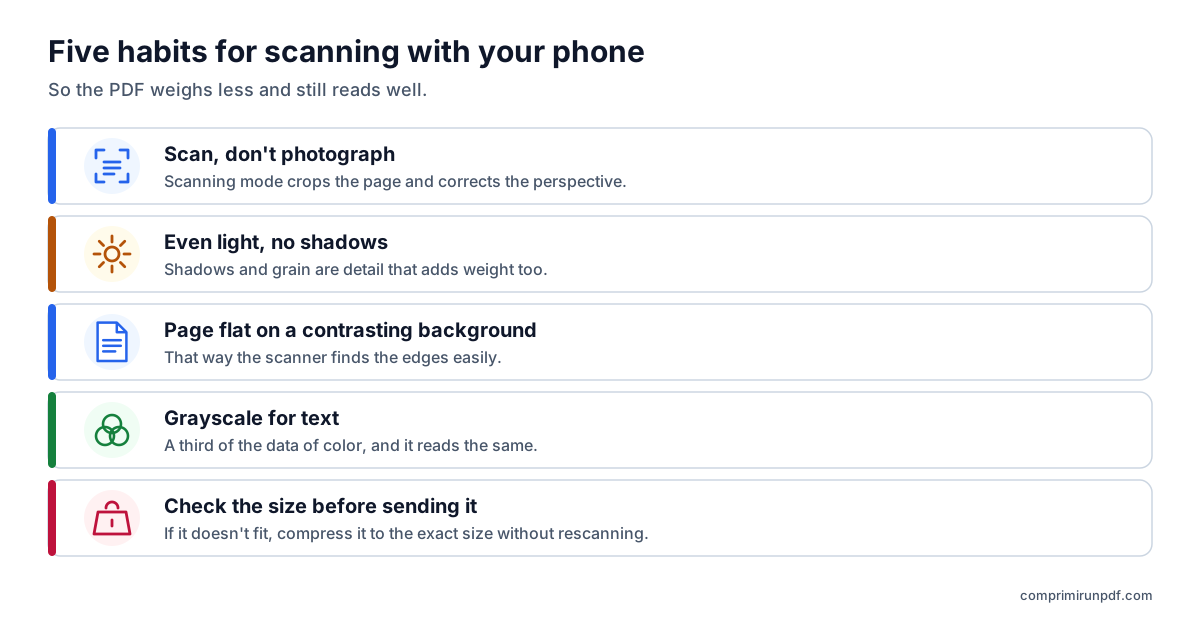
- Scan, don't photograph. Scanning mode crops the page, corrects the perspective and leaves the table out. A normal photo keeps the whole frame, table included.
- Look for even light with no shadows. Daylight near a window, with no shadow from your hand or the phone. Shadows and the grain of a low-light photo are detail the file has to store, and they add weight. On glossy paper, avoid the flash: it leaves a white glare that hides the text.
- Lay the page flat on a plain, contrasting background. A dark table helps the scanner find the edges. Hold the phone parallel to the paper so it doesn't have to correct the perspective so much.
- Choose grayscale for text. Save color for what really needs it.
- Check the size before sending it. And scan only what's needed: every blank back side is one more page.
If you've already scanned it and the PDF doesn't fit
There's no need to do it again. A compressor with a target size saves each page again at just the resolution needed for the limit you type, and in a scanned document you don't lose selectable text, because its text was already an image. The exception: if the app added a text recognition layer (OCR) so you can search the PDF, that layer is lost when compressing this way.
To know whether the result will read well, divide the limit by the number of pages. With 2 MB for four pages you get about 500 KB per page, plenty for sharp text. With 1 MB for ten pages it's about 100 KB per page: the text is still readable, but it starts to show in photos and stamps. If the form accepts several files, another way out is to split the PDF by size instead of compressing it.
Type the size you've been asked for —2 MB, 1 MB, 500 KB— and the tool leaves your scan just under it. It works in your phone's browser and the PDF never leaves your device.
Compress a PDF nowFrequently asked questions
Why is a PDF scanned with my phone so large?
Because the camera captures far more resolution than text needs. A 12-megapixel photo of an A4 page is like scanning it at about 345 DPI, and 150 is enough to read it. If it's also saved in color, each page carries three times the data it would in grayscale.
How do I make an iPhone scan smaller?
Scan with Notes or Files and, before capturing, choose the Grayscale filter. With good light and the page well framed, the PDF comes out much lighter. If it still doesn't fit the limit, compress it afterwards to a target size: there's no need to scan again.
Is it better to scan in black and white or in grayscale?
For clean printed text, black and white is usually the lightest. But it turns every dot into pure black or white, and it can wipe out fine strokes: ballpoint signatures, stamps or faded receipts. Grayscale is the safe choice for almost any document.
Which app should I use to scan on Android now that Microsoft Lens is gone?
Google Drive has a scanner that saves the result as a PDF, and some manufacturers, such as Samsung, build one into the camera. Microsoft Lens stopped creating scans on March 9, 2026, and Microsoft recommends the OneDrive scanner instead, which saves scans to the cloud.
Can I shrink a PDF that's already scanned without scanning it again?
Yes. A compressor with a target size saves each page again at just the resolution needed for the limit you type. You don't lose selectable text in a scan, because its text was already an image, unless the app added a text recognition layer.
Next step
These pages open the tool with the size already set, on your phone too:
- Compress a PDF to 2 MB, the most common limit on government portals and job sites.
- Compress a PDF to 1 MB, for multi-page scans on stricter forms.
- Compress a PDF to 500 KB, when they ask for a single, very light document.
If the PDF already exists and you want to shrink it with what your phone offers, the guide to compressing a PDF on iPhone, Android, Mac and Windows goes over each system. And to see what takes up space in your scan before touching it, run it through the PDF X-ray.
Sources
Other guides you may find useful
- How to split a PDF by size: parts of 2, 5 or 10 MBWhen a portal accepts several files but limits the size of each one, splitting the PDF beats compressing it: the pages stay untouched. Here's how to split it by size rather than by pages, what changes in the document and which other tools can do it.
- How to compress a PDF on iPhone, Android, Mac and WindowsMac and iPhone have a built-in way to shrink a PDF; Android and Windows have none. And none of them lets you choose the final size. We explain what each option does, step by step, and how to hit an exact size on any device without uploading the file.
- How to email a PDF that's too largeGmail, Outlook and Yahoo advertise 25 MB, yet a 20 MB attachment can still bounce. Here are the real limits of each provider, what size to aim for depending on who you're sending to, and the three ways out when the PDF won't fit.
- Why a PDF is so large and how to shrink itText takes up almost nothing: what drives up a PDF's size is scanned images and phone photos. We explain the pixel arithmetic, what each compression method does and which size to choose so the document stays readable.
- Compress a PDF without uploading it to any serverMost online compressors upload your document to someone else's server and ask you to trust that they'll delete it. There's another way to do it, and you don't have to take anyone's word for it: you can check it in thirty seconds.