How to email a PDF that's too large (and why 25 MB isn't really 25 MB)
Gmail, Outlook and Yahoo advertise 25 MB, yet a 20 MB attachment can still bounce. Here are the real limits of each provider, what size to aim for depending on who you're sending to, and the three ways out when the PDF won't fit.
By Robert Bzia8 min read
It tends to happen with the documents that are most urgent: the scanned file your accountant asked for, the pay slips for the bank, the project that has to go out before noon. You hit send and, a moment later, a notice arrives from the mail server: the message exceeds the allowed size. Or worse, nothing arrives and the recipient never gets it.
The fix is rarely complicated, but it helps to understand two things before you start compressing blindly: how much really fits in an email, and why the PDF is so heavy in the first place. With that clear, you pick the right size on the first try.
How much you can attach in Gmail, Outlook and other email services
Every provider sets a limit per message, which adds up all the attachments and, in some cases, the text as well. These are the sending limits published by the main services, together with what really fits once encoding is taken into account:
| Service | Sending limit | PDF that fits, approx. | If you go over |
|---|---|---|---|
| Gmail | 25 MB | 18 MB | Google Drive link |
| Outlook.com | 25 MB | 18 MB | OneDrive link |
| Yahoo Mail | 25 MB | 18 MB | Cloud link |
| iCloud Mail | 20 MB | 14 MB | Mail Drop, up to 5 GB |
| Microsoft 365 (business) | 35 MB by default | 25 MB | Set by the administrator |
Two important caveats. First, your provider's limit is only half the story, because the message also has to fit into the recipient's mailbox. Gmail accepts incoming emails of up to 50 MB, but many company and government servers are still set to 10 MB or even less, and the smaller of the two limits wins. Second, these limits change from time to time, so if you're cutting it close, check your provider's help pages.
Why a 20 MB PDF won't fit in a 25 MB email
Email was designed to carry text, not files. For a PDF to travel inside a message, your email program converts it into a text format called Base64, which represents every group of 3 bytes with 4 characters. That conversion has a fixed cost: the attachment grows by 33 %, and a bit more once you count line breaks and message headers.
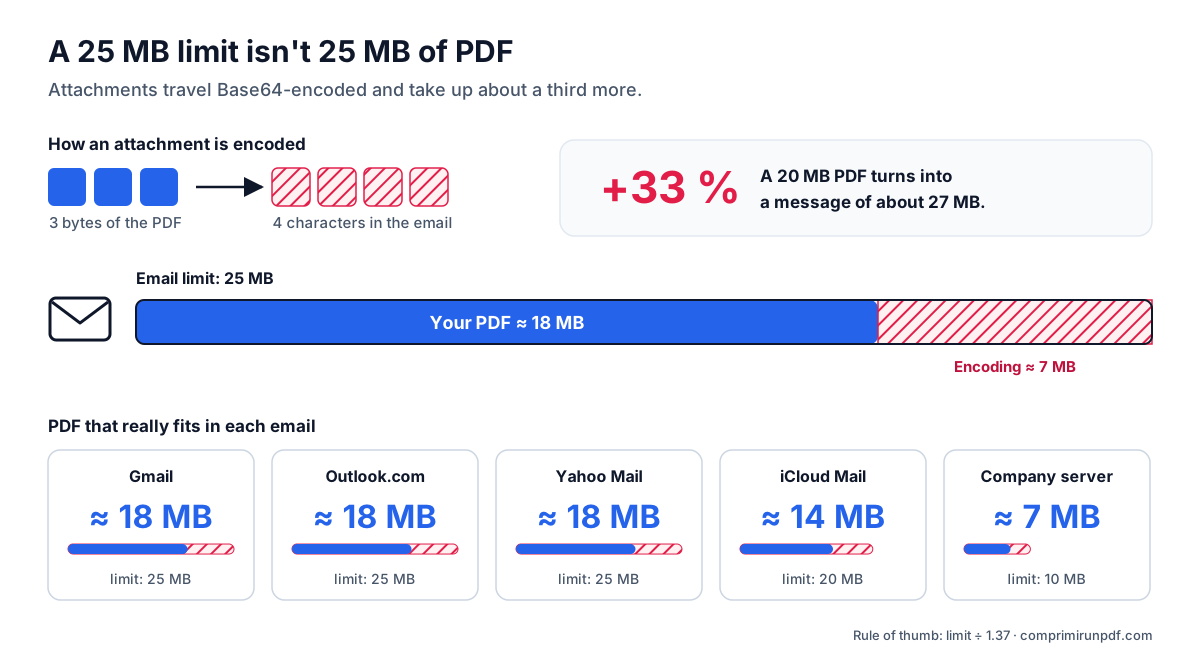
That's why the numbers work out like this: an 18 MB PDF becomes a message of about 24-25 MB, right on the edge. A 20 MB one comes to around 27 MB and no longer fits, even if your email program let you attach it without complaint. Some email clients check the size of the original file when you attach it, but the receiving server measures the encoded message, and that's the one that decides.
Three ways out when the PDF won't fit
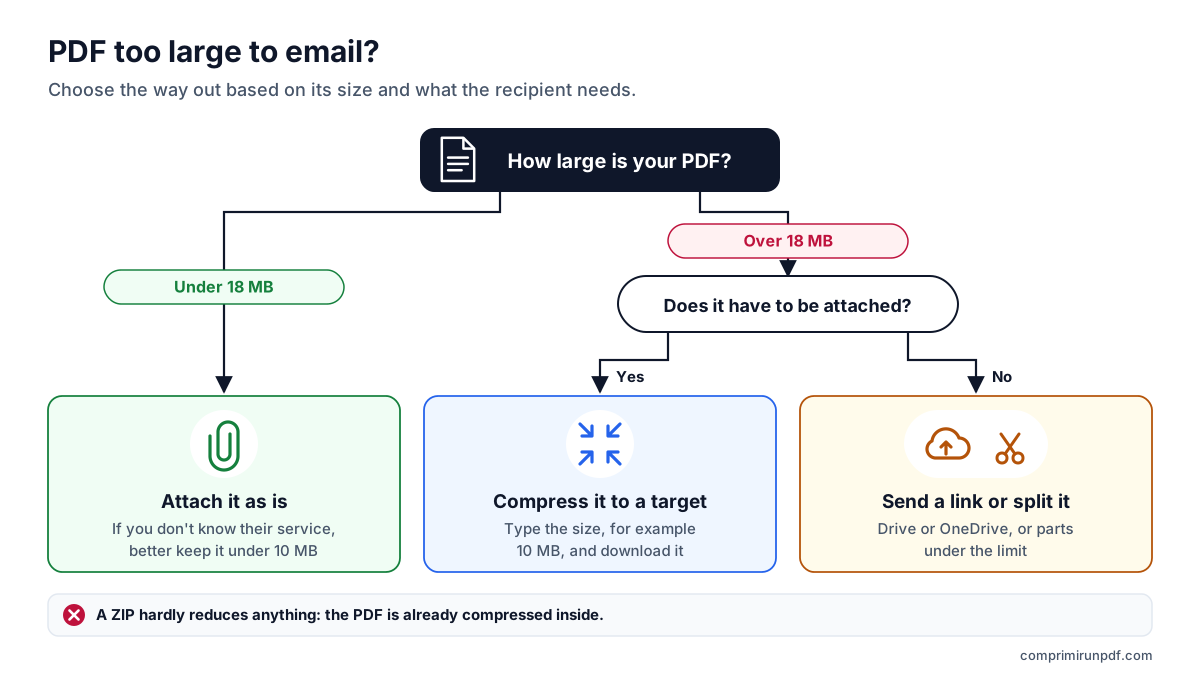
If your file is over the limit, there are three paths. They aren't mutually exclusive, but each one fits a different situation better.
1. Compress it to a specific size
It's the most direct option when the document has to go as an attachment: because an organization asks for it that way, because the recipient doesn't open external links, or because you want it archived in the email itself. The key is to compress to a target rather than "as much as possible": if you have room to spare, there's no point losing quality.
With a scanned PDF, which is the usual case for heavy files, the reduction is often huge without it being noticeable when you read it. In the guide on why a PDF is so large we explain where that size comes from and what resolution a document needs to stay readable.
2. Send a link instead of the file
Gmail and Outlook.com suggest it on their own when you go over: they upload the file to Google Drive or OneDrive and put a link in the message. It's the best way out for files that mustn't lose quality, such as plans, print-ready catalogs or photographs. In exchange, the file is hosted on a cloud service, the recipient needs permission to open it, and the link may expire or stop working if you delete it.
3. Split it into several parts
If the document is long and the recipient accepts several emails, you can split it into smaller PDFs, each one under the limit. The pages aren't touched, so the text stays selectable. Bear in mind that the parts add up to a little more than the original, because each one needs its own copy of the fonts, and that a digital signature stops being valid once you split.
What size to choose depending on who you're sending it to
The right number doesn't depend only on your email service, but on the narrowest link in the chain. As a guide:
- Unknown or business recipient: aim for 10 MB or less in total. It's the limit many corporate servers still have, and the one that never causes trouble.
- Gmail, Outlook.com or Yahoo to any of them: up to about 18 MB of attachments per message.
- Web forms and government portals: they don't apply email encoding, but they have their own limits, often 2 to 10 MB per file. Use exactly the number they state.
- Several PDFs in the same message: the limit applies to the total. Three documents in a 10 MB email are about 3 MB each.
Type the size you need —for example, 10 MB— and the tool adjusts your PDF until it lands just below it. The file isn't uploaded to any server.
Compress a PDF nowStep by step: getting a PDF ready to attach
- Check how large the PDF is and choose the target with the rule above. If in doubt, 10 MB.
- Open the compressor, drag the file in and type the size. If you're sending several PDFs in the same email, divide the limit among them.
- Wait for it to finish: the tool tries resolutions from highest to lowest and keeps the best quality that fits the requested size.
- Open the result and check that it reads well, especially small print and signatures.
- Attach it to the email. If it matters, send yourself a copy first to confirm it arrives.
If the document is too long to compress without the text suffering, turn on the split option in the same tool: you type the maximum size per part and get as many PDFs as needed, without touching the pages.
Frequently asked questions
What's the largest PDF I can send with Gmail?
Gmail lets you send up to 25 MB of attachments per message, counting all files together. Because attachments travel encoded and take up about a third more, the safe choice is to keep the PDF under roughly 18 MB. If the file is larger, Gmail offers to send it as a Google Drive link.
Why does an email bounce when the attachment is smaller than the limit?
Because the limit applies to the whole message as it travels over the internet, and attachments are Base64-encoded, which turns every 3 bytes into 4 characters. A 20 MB PDF becomes a message of about 27 MB. It can also happen that the recipient's server has a lower limit than yours.
Does putting the PDF in a ZIP make it smaller?
Usually only slightly. The images inside a PDF are already compressed, so a ZIP rarely saves more than a few percent. To really reduce the size, you have to lower the resolution of those images.
What size is safe if I don't know which email service the recipient uses?
Under 10 MB in total gets through to practically any mailbox, including the most restrictive company servers. If you know the recipient uses Gmail, Outlook.com or Yahoo, you can go up to about 18 MB.
Next step
These pages open the tool with the most common size for each case:
- Compress a PDF to 10 MB, the safe target for any mailbox.
- Compress a PDF to 5 MB, if you're sending several documents in the same email.
- Compress a PDF to 2 MB, for web forms and government portals.
If the PDF contains personal data and you're wary of using an online compressor, in this guide we explain how to check that the file never leaves your device. And if you want to know what takes up space in your particular document, run it through the PDF X-ray.
Sending it from your phone? The guide to compressing a PDF on iPhone, Android, Mac and Windows has the steps for each system.
And if you'd rather send it in several emails without losing quality, this guide explains how to split a PDF by size into parts that stay under the limit.
Other guides you may find useful
- How to split a PDF by size: parts of 2, 5 or 10 MBWhen a portal accepts several files but limits the size of each one, splitting the PDF beats compressing it: the pages stay untouched. Here's how to split it by size rather than by pages, what changes in the document and which other tools can do it.
- How to compress a PDF on iPhone, Android, Mac and WindowsMac and iPhone have a built-in way to shrink a PDF; Android and Windows have none. And none of them lets you choose the final size. We explain what each option does, step by step, and how to hit an exact size on any device without uploading the file.
- Why a PDF is so large and how to shrink itText takes up almost nothing: what drives up a PDF's size is scanned images and phone photos. We explain the pixel arithmetic, what each compression method does and which size to choose so the document stays readable.
- Compress a PDF without uploading it to any serverMost online compressors upload your document to someone else's server and ask you to trust that they'll delete it. There's another way to do it, and you don't have to take anyone's word for it: you can check it in thirty seconds.