Why a PDF is so large and how to shrink it without it showing
Text takes up almost nothing: what drives up a PDF's size is scanned images and phone photos. We explain the pixel arithmetic, what each compression method does and which size to choose so the document stays readable.
By Robert Bzia8 min read
A ten-page contract generated from a word processor may weigh 150 KB. The same contract, printed, signed and scanned, easily goes over 10 MB. The content is identical; what has changed is how it's stored. Understanding that difference is what lets you shrink a PDF without ruining it, and also keep it from being so large next time.
What's inside a PDF and how much space each part takes
A PDF isn't a picture of a document, but a container. Inside it holds pieces of very different kinds, and each one weighs in its own way:
- Text and vector graphics. They're stored as instructions (“write this sentence in this font at this position”, “draw this line”), not as pixels. A whole page of text takes a few kilobytes and stays sharp at any zoom level.
- Images. Photos, bitmap logos and, above all, scanned pages. Here every pixel counts, and this is where the weight lies in the vast majority of heavy PDFs.
- Embedded fonts. So the document looks the same on any computer, the PDF can carry the typeface inside it. If it's embedded with only the characters used (a subset), it takes little space; if the whole font is embedded, it can add hundreds of kilobytes per family, and more for fonts with thousands of characters.
- Metadata and extras. Author, source program, page thumbnails, color profiles, layers, form fields or attachments. They usually weigh little, with exceptions: an attachment inside the PDF weighs whatever that file weighs.
- Earlier versions of the file itself. The format allows changes to be saved by appending them at the end, without rewriting what came before. A PDF edited and saved many times can drag along objects that are no longer visible but are still inside.
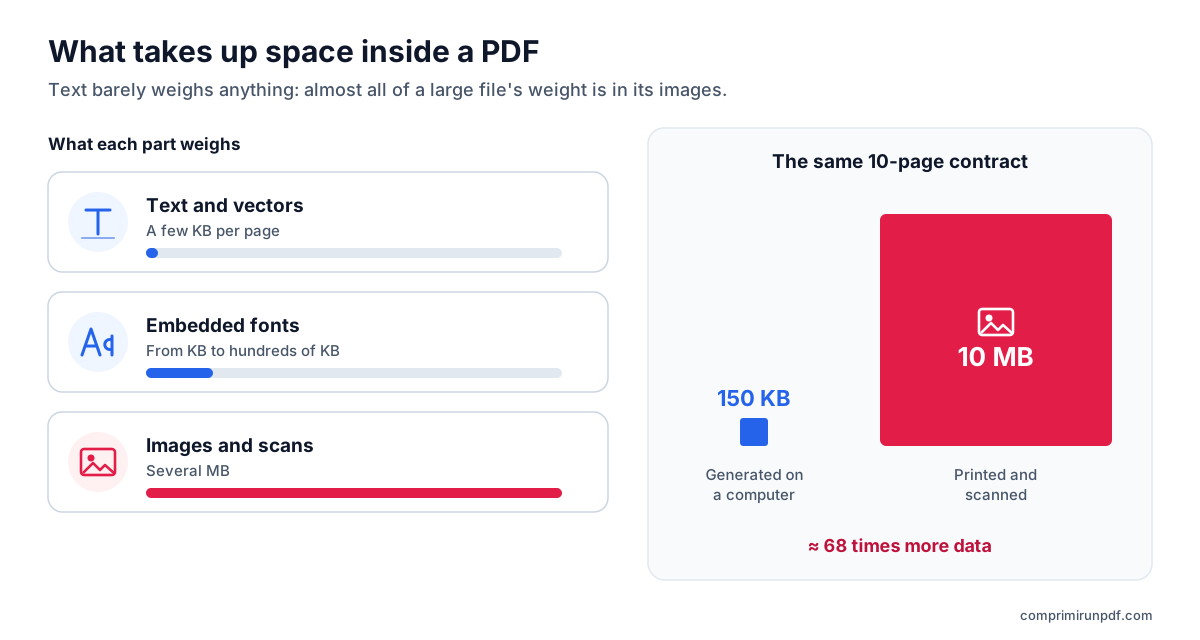
The practical takeaway is simple: if your PDF weighs several megabytes and has few pages, look for the images. That's where the solution is.
Why a scanned document is so large: the pixel arithmetic
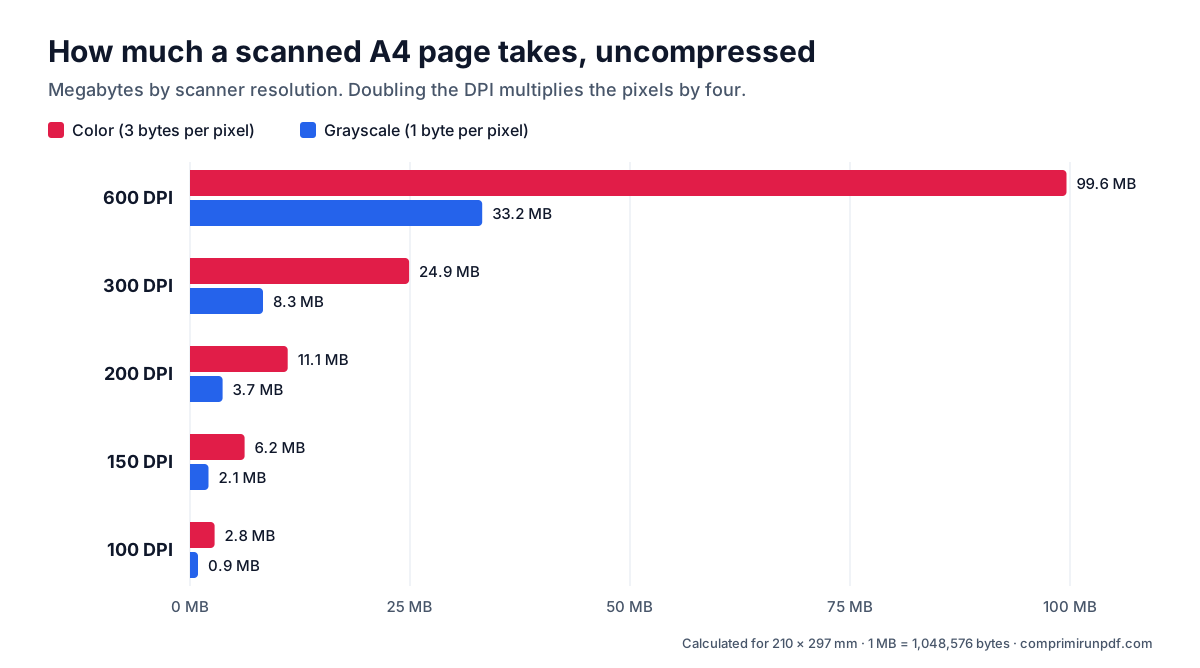
A scanner turns each page into a grid of dots. The resolution, measured in DPI (dots per inch), says how many dots there are in each inch of paper, across and down. That's why size doesn't grow in proportion to DPI, but to its square: doubling the resolution multiplies the number of pixels by four.
Then there's color. A grayscale pixel needs one byte; a color one, three. The chart and the table show how much a single A4 page takes before compression, depending on how it's scanned:
| Resolution | Pixels | Color | Grayscale |
|---|---|---|---|
| 600 DPI | 4961 × 7016 (34.8 MP) | 99.6 MB | 33.2 MB |
| 300 DPI | 2480 × 3508 (8.7 MP) | 24.9 MB | 8.3 MB |
| 200 DPI | 1654 × 2339 (3.9 MP) | 11.1 MB | 3.7 MB |
| 150 DPI | 1240 × 1754 (2.2 MP) | 6.2 MB | 2.1 MB |
| 100 DPI | 827 × 1169 (1.0 MP) | 2.8 MB | 0.9 MB |
The scanner doesn't store those figures as they are: it compresses them, usually as JPEG, and the final file takes up quite a bit less. But the proportion holds. A page at 600 DPI in color has 48 times more data than the same page at 150 DPI in grayscale, and in a text document the difference to the naked eye is zero. Many scanners and multifunction printers come set to high resolution and color out of the box, and that's where 30 MB PDFs come from.
The case of phone photos
The same thing happens, but more hidden. A mid-range phone camera takes 12-megapixel photos (4032 × 3024), which is more pixels than an A4 page scanned at 300 DPI. If you photograph a receipt and insert it into a document without resizing it, each page carries an image of that size, even if it looks small on screen. Ten photos like that and the PDF no longer fits in any form.
If you just need your PDF to fit a specific limit, type the size and the tool adjusts the resolution for you, without uploading the file to any server.
Compress a PDF nowThe three ways to compress a PDF
Every compressor does some combination of these three things. Knowing them explains why some reduce little and others a lot, and what's lost in each case.
1. Optimize the structure, losslessly
This means rewriting the file cleanly: removing accumulated earlier versions, duplicate objects, thumbnails and unnecessary metadata, and embedding only the subset of characters of each font. The document stays exactly the same. The problem is that, if the weight is in the images, this barely makes a difference: an 8 MB scan might shed a few kilobytes.
2. Recompress the images
Each image in the PDF is taken, its resolution is reduced and it's saved again as JPEG at a lower quality. Real text stays text, selectable and searchable. It's the ideal option for a computer-generated PDF with photos inside, but it depends on the file being well built: with unusual PDF structures, the result is hard to predict and doesn't guarantee a specific size.
3. Turn each page into an image
Each whole page is drawn as an image at a chosen resolution, compressed as JPEG, and a new PDF is assembled from those images. It's the only way to control the final size precisely, because the size depends almost entirely on two variables that can be adjusted: resolution and quality. In exchange, the text can no longer be selected. For a scanned document there's no loss in that sense, because its text was already an image.
| Method | Reduction | Visible loss | Selectable text |
|---|---|---|---|
| Optimize structure | Small | None | Kept |
| Recompress images | Medium to high | Slight | Kept |
| Page to image | Whatever you ask | Depends on target | Lost |
How this tool adjusts the size
comprimirunpdf uses the third method because it's the one that can meet an exact limit, which is what a form asks for. The whole process happens in your browser:
- It compares the original's size with the target and chooses where to start. If it only needs to go down a little, it starts at the top quality of its scale: 200 DPI and 85 % JPEG quality.
- It draws each page at that resolution, compresses it and assembles the resulting PDF. Then it measures it.
- If it's over the target, it estimates how far to go down (size grows roughly with the square of the DPI) and repeats with a stronger setting. The scale goes down to 50 DPI and 25 % quality.
- If there's room to spare, it raises the quality to land as close as possible below the limit. There's no point delivering 400 KB if you were allowed 2 MB.
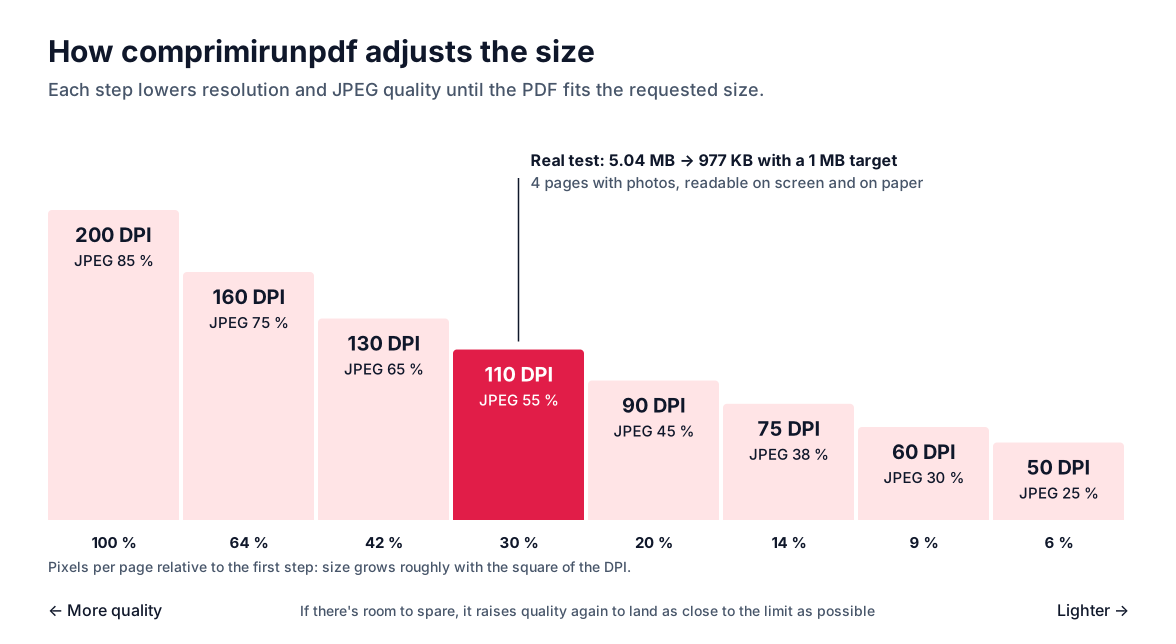
A real example: a four-page document with photos that weighed 5.04 MB ended up at 977 KB with a 1 MB target, rasterized at 110 DPI and perfectly readable on screen and on paper. If a target can't be reached without the content becoming illegible, the tool delivers the lightest attempt and tells you the real size, instead of handing you an unreadable file.
Which size to choose without it showing
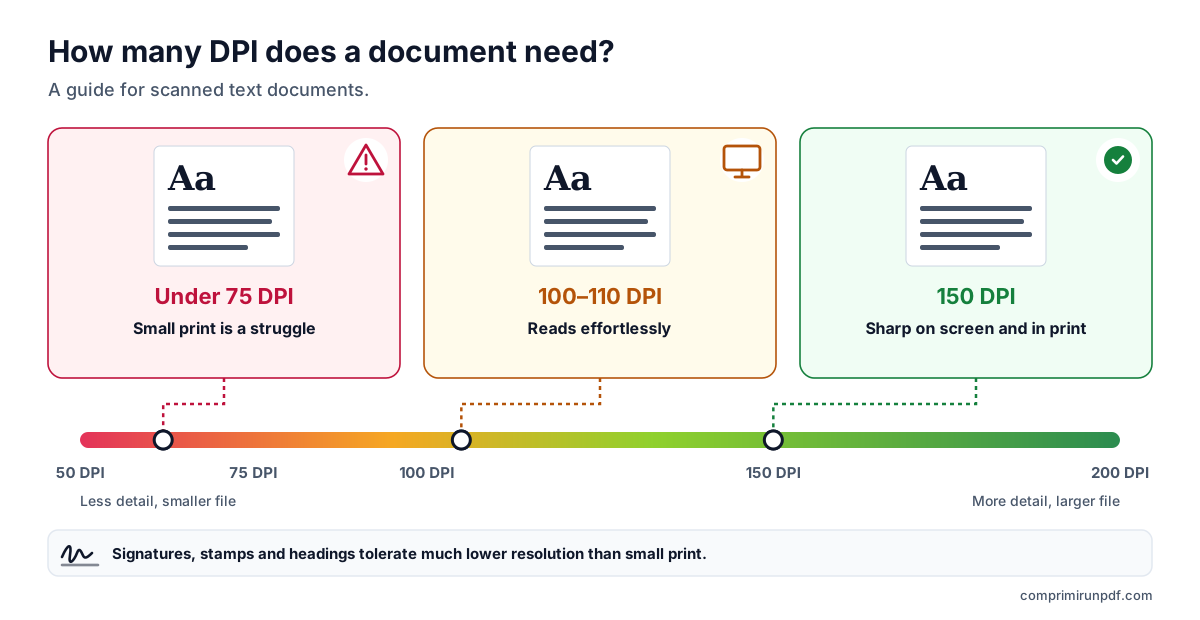
The size per page is what determines quality: a 1 MB limit is roomy for two pages and tight for twenty. As a guide for scanned text documents:
- Around 150 DPI: sharp text on screen and when printed on A4 or Letter paper. It's the resolution worth scanning text documents at.
- Between 100 and 110 DPI: effortless to read on screen and good for any application. It's where short documents compressed to 1 MB usually end up.
- Below 75 DPI: small print starts to suffer. Signatures, stamps and headings hold up quite a bit longer.
If the form limits the size of the whole submission rather than each file, share it out: three documents within a 1 MB limit are about 330 KB each. And if your file lands right on the limit and is still rejected, the form may be counting 1 MB as 1,000,000 bytes instead of 1,048,576; lower the target by 5 % and you'll be safe.
How to keep a PDF from getting so large in the first place
Compressing solves today's problem; setting up the source properly avoids tomorrow's.
- On the scanner or multifunction printer: choose 150 or 200 DPI and grayscale for text documents. Save color for what really needs it, such as photos or documents where color carries meaning.
- On your phone: use the document scanning mode of the camera or notes app instead of taking a normal photo. It crops the page, corrects the perspective and produces a much lighter PDF.
- When exporting from Word: in “Save As” with the PDF type, the “Minimum size (publishing online)” option reduces the embedded images. Before exporting, it's worth inserting already resized photos instead of pasting the camera originals.
- When editing a PDF many times: use “Save As” to a new file instead of “Save” over the same one; that discards the accumulated versions.
Frequently asked questions
Why does a PDF with only a few pages weigh several megabytes?
Almost always because it contains high-resolution images: scanned pages or phone photos inserted as they are. A single 12-megapixel photo has more pixels than an A4 page scanned at 300 DPI. Text, on the other hand, takes up almost nothing.
Does compressing a PDF reduce its quality?
It depends on the method. Cleaning up metadata, duplicates and fonts loses nothing, but rarely reduces much. To really go down you have to recompress the images or turn the pages into images, and that does lose detail. What matters is that the loss stays below what the eye notices when reading.
What resolution does a document need to be readable?
As a guide, 150 DPI gives sharp text on screen and when printed on A4 or Letter paper; between 100 and 110 DPI it's still effortless to read; below 75 DPI small print starts to suffer. Signatures and stamps hold up better than small body text.
Can I compress a PDF signed with a digital certificate?
You can, but the electronic signature will no longer be valid, because it protects the exact content of the file and any change breaks it. Compress first and sign afterwards. A scanned handwritten signature doesn't have that problem: it's part of the image.
Next step
To find out what takes up space in your particular PDF, run it through the PDF X-ray: it tells you how much of the size is images, fonts or text, without uploading the file.
If you already know the limit you've been given, these pages open the tool with that size already set:
- Compress a PDF to 2 MB, the most common limit on government and application portals.
- Compress a PDF to 1 MB, for multi-page documents on stricter forms.
- Compress a PDF to 10 MB, for long color scans.
And if you're worried about what happens to the document when you compress it, in this other guide we explain how to check that a compressor doesn't upload your file.
And if what you need is to send it by email, the guide to emailing a large PDF covers the real limits of Gmail, Outlook and other services, and which size to choose in each case.
Doing it on your phone or without installing anything? In this guide we go through what iPhone, Android, Mac and Windows have built in to compress a PDF.
Other guides you may find useful
- How to split a PDF by size: parts of 2, 5 or 10 MBWhen a portal accepts several files but limits the size of each one, splitting the PDF beats compressing it: the pages stay untouched. Here's how to split it by size rather than by pages, what changes in the document and which other tools can do it.
- How to compress a PDF on iPhone, Android, Mac and WindowsMac and iPhone have a built-in way to shrink a PDF; Android and Windows have none. And none of them lets you choose the final size. We explain what each option does, step by step, and how to hit an exact size on any device without uploading the file.
- How to email a PDF that's too largeGmail, Outlook and Yahoo advertise 25 MB, yet a 20 MB attachment can still bounce. Here are the real limits of each provider, what size to aim for depending on who you're sending to, and the three ways out when the PDF won't fit.
- Compress a PDF without uploading it to any serverMost online compressors upload your document to someone else's server and ask you to trust that they'll delete it. There's another way to do it, and you don't have to take anyone's word for it: you can check it in thirty seconds.