Compress a PDF without uploading it to any server: why it matters and how to check
Most online compressors upload your document to someone else's server and ask you to trust that they'll delete it. There's another way to do it, and you don't have to take anyone's word for it: you can check it in thirty seconds.
By Robert Bzia7 min read
When a form rejects your PDF for being too large, the solution seems obvious: search for “compress PDF” and use the first result. What almost nobody asks at that moment is what they've just done with their document. And the document in question is often the most sensitive thing on your hard drive: a scan of an ID card, a payslip, a signed contract, a medical report.
This article explains what happens technically in the two models that exist, how to tell one from the other in any tool —not just this one— and how to check it yourself in under a minute, without relying on what the home page says.
In a hurry? The tool on this site compresses to the exact size you need without the file ever leaving your device.
Compress a PDF nowWhat really happens when you upload a PDF to an online compressor
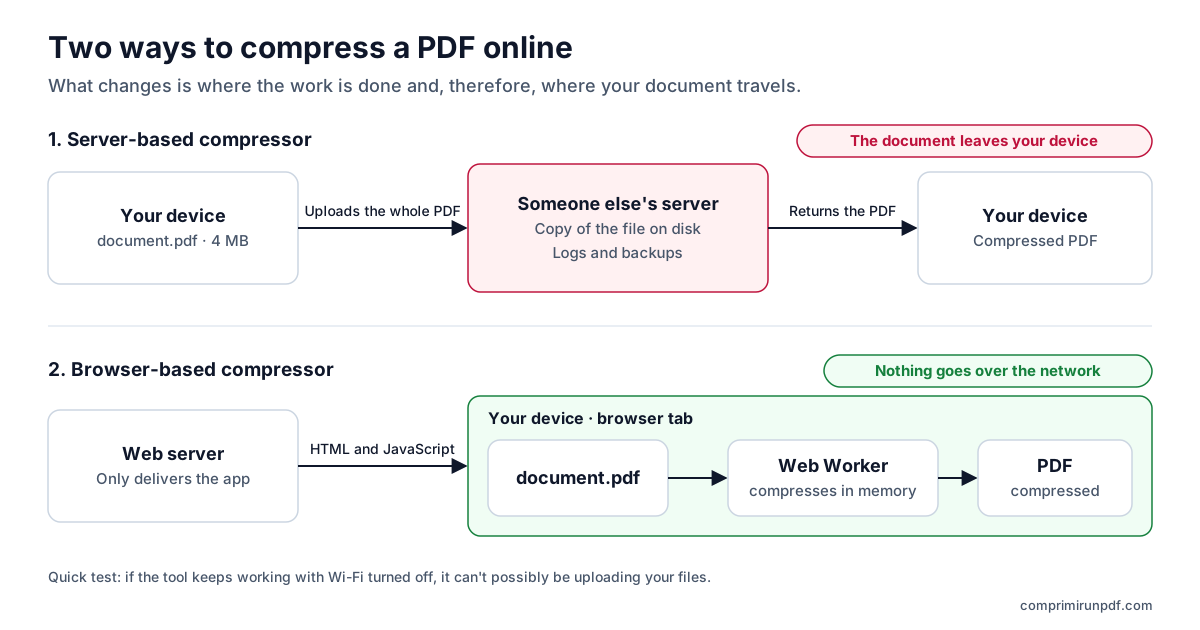
In the classic model, pressing “compress” triggers an upload: your file travels over the internet to a server, often in another country, where a program processes it and sends back the result. Between those two moments several things happen that the interface doesn't show.
- The file is written to someone else's disk. Even if the service promises to delete it, for a while a complete copy of your document exists outside your control.
- There may be intermediate copies. Load balancers, temporary storage systems, automatic backups and error logs can retain fragments or the whole file, with deletion cycles different from the one the website announces.
- Deletion is a promise, not a verifiable guarantee. “We delete your files after an hour” is a claim that, as a user, you have no way of checking. Nor can you know who has access in the meantime.
- A security incident affects you. If that company suffers a breach, your document is part of the haul, even if you only used the service for five minutes a year ago.
None of this implies bad faith. It's simply the unavoidable cost of a model where the work is done by a computer that isn't yours. And in most cases —compressing a holiday photo— it's a perfectly acceptable cost. The problem arises when the file is precisely the one you wouldn't want to hand to a stranger.
The alternative: let your own browser do the work
A modern browser is a complete runtime environment. It can read a file from disk, decode a PDF, draw each page onto an in-memory canvas, recompress those images and reassemble the document. All of that happens inside the tab, with your device's CPU and memory.
When a tool works like that, the phrase “we don't upload your file” isn't a privacy policy: it's a description of the architecture. There's no server that could see the document because there's no network request that carries it. The server only delivers the app —the HTML, the JavaScript, the styles— just as it would deliver any web page, and from then on it plays no part.
What it takes technically
Two pieces make this model possible. The first is a library that can interpret the PDF format inside the browser, which is what lets the file be drawn without outside help. The second is a Web Worker: a thread of execution running in parallel to the interface. Without it, compressing a twenty-megabyte document would freeze the whole page for seconds; with it, the progress bar moves smoothly while the work happens in the background.
How to check it yourself in under a minute
This is the important part, and it works for any tool that claims to process locally, this one included. You don't have to believe anything: you look.
Method 1: the Network tab (30 seconds)
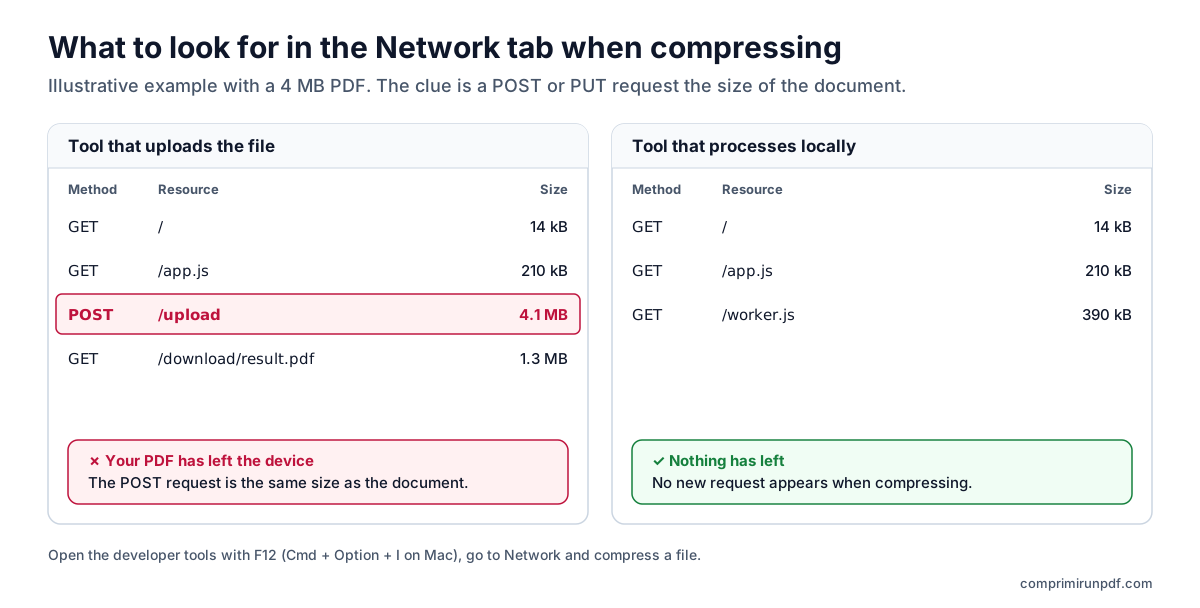
- Open the browser's developer tools: F12 on Windows and Linux, Cmd + Option + I on Mac.
- Go to the Network tab and leave the list visible.
- Compress a file as usual and watch the requests that appear meanwhile.
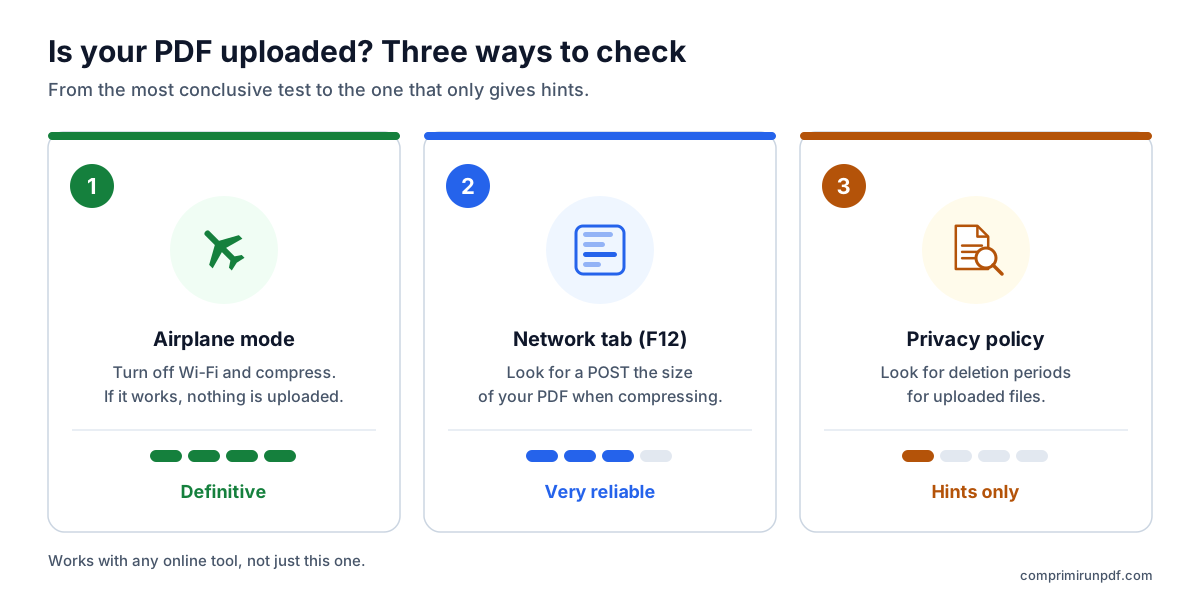
What to look for: any POST or PUT request whose upload size resembles your document's. If your PDF is 4 MB and you see an outgoing request of about 4 MB, your file has been uploaded, whatever the page says. If, when compression finishes, there's no new request of that size, nothing has left.
Method 2: airplane mode (the definitive test)
It's the most conclusive check, and it doesn't require knowing how to read a list of requests. Load the page as usual, then turn off Wi-Fi or mobile data, and compress a file.
If it works offline, there can't possibly be a server involved. A service that uploaded files would throw a network error immediately. On this site, moreover, the app stays saved in the browser after the first visit, so you can install it and use it on a plane, in a basement or in a village with no coverage.
Method 3: read the fine print of the privacy policy
Less conclusive, but revealing. In a tool that uploads files, the privacy policy has to talk about retention periods, data processors, international transfers and security measures for the documents. In one that processes locally, those sections simply don't apply to the files, because they never come to exist on the server.
What does get logged, even here
Being honest about this is part of the argument. The document not being uploaded doesn't mean the visit is invisible:
- The hosting provider logs the HTTP request that serves the page: IP address, user agent, requested resource and time. It's the same thing that happens when you open any website in the world, and it's needed to serve it and protect it from attacks.
- The browser stores the app in its cache so it can work offline. Those are the program's files, not yours.
The substantial difference is that none of those logs contains the content of your documents, because your documents are never sent. What can be known is that someone visited the site; not what they compressed.
The trade-offs, stated plainly
Local processing isn't free. It has three real limits worth knowing before you choose:
- It depends on your device. A very large file uses the tab's memory. A recent computer handles tens of megabytes without trouble; on an old phone you have to be more careful.
- Strong compression is lossy. To reach a specific size the pages have to be turned into images, which means the text can no longer be selected or searched inside the PDF. It still looks and reads the same, and works perfectly for attaching to a form, but if you need to keep the text, no tool of this kind will do.
- The first load is heavier. The compression engine has to be downloaded once, because it's going to run on your computer. In return, from the second visit on it's already in the browser and everything is faster.
Checklist for evaluating any PDF compressor
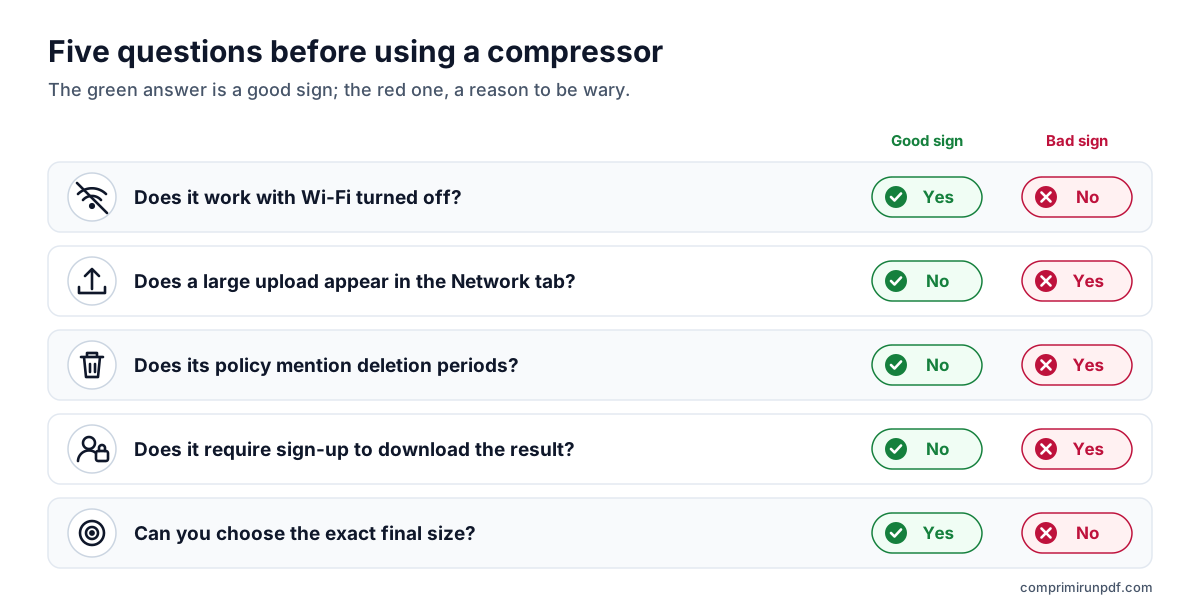
If tomorrow you use another tool, these five questions tell you in a minute which model you're dealing with:
- Does it work with Wi-Fi turned off? If yes, it processes locally. If not, it uploads your files.
- Does any large request appear in the Network tab when compressing?
- Does the privacy policy mention file deletion periods? That gives away that it stores them.
- Does it force you to sign up or give an email address to download the result? That's a sign the file is on their server and they control delivery.
- Can you choose the exact final size, or only “low / medium / high”? It's a question of usefulness, not privacy, but it makes the difference when a form demands less than 2 MB.
Frequently asked questions
Is it safe to compress a PDF online?
It depends on where it's processed. If the tool uploads the file to a server, a copy of your document exists outside your control for a while, and its deletion is a promise you can't verify. If it's processed in the browser, the document never leaves your device. To tell them apart, turn off Wi-Fi and compress: if it keeps working, nothing is uploaded.
How can I tell if a PDF compressor uploads my file?
Open your browser's developer tools (F12), go to the Network tab and compress a file. A POST or PUT request about the size of your document means it has been uploaded. The simplest test is airplane mode: a service that uploads files stops working offline.
Do you lose quality by compressing in the browser instead of on a server?
Not because it happens in the browser: with the same method, the result is equivalent. What changes is privacy. That said, to reach a specific size the pages are turned into images, so the text is no longer selectable, although it reads just the same.
Next step
If you've made it this far because a form rejected a file, what you need is a specific size. These are the pages for the most requested limits, and each one opens the tool with that target already set:
- Compress a PDF to 2 MB, the most common limit on government and application portals.
- Compress a PDF to 1 MB, when the form is stricter.
- Compress a PDF to 500 KB, for the toughest limits.
To understand where a PDF's size comes from, read why a PDF is so large; and if you're going to email it, this guide explains how much really fits in an attachment.
And if you want to compress without installing software, this guide compares what each system has built in —iPhone, Android, Mac and Windows— with a browser-based compressor.
Other guides you may find useful
- How to split a PDF by size: parts of 2, 5 or 10 MBWhen a portal accepts several files but limits the size of each one, splitting the PDF beats compressing it: the pages stay untouched. Here's how to split it by size rather than by pages, what changes in the document and which other tools can do it.
- How to compress a PDF on iPhone, Android, Mac and WindowsMac and iPhone have a built-in way to shrink a PDF; Android and Windows have none. And none of them lets you choose the final size. We explain what each option does, step by step, and how to hit an exact size on any device without uploading the file.
- How to email a PDF that's too largeGmail, Outlook and Yahoo advertise 25 MB, yet a 20 MB attachment can still bounce. Here are the real limits of each provider, what size to aim for depending on who you're sending to, and the three ways out when the PDF won't fit.
- Why a PDF is so large and how to shrink itText takes up almost nothing: what drives up a PDF's size is scanned images and phone photos. We explain the pixel arithmetic, what each compression method does and which size to choose so the document stays readable.