How to compress a PDF on iPhone, Android, Mac and Windows: what each system offers and when it isn't enough
Mac and iPhone have a built-in way to shrink a PDF; Android and Windows have none. And none of them lets you choose the final size. We explain what each option does, step by step, and how to hit an exact size on any device without uploading the file.
By Robert Bzia8 min read
You usually need it in a hurry and away from your usual computer: the government portal rejects the scan you just made on your phone, the job site only accepts 2 MB, or the email bounces the attachment. And each system solves it differently, when it solves it at all.
In this guide we go through what iPhone, Android, Mac and Windows have built in, what each option does under the hood and where it falls short, with the exact steps. Menus and features were checked in October 2026 against Apple's and Ghostscript's official documentation, which we cite at the end.
At a glance: what each system offers
| System | What's built in | Choose the size? | Does text stay text? |
|---|---|---|---|
| iPhone and iPad | Shortcuts action to optimize a PDF's file size (iOS 16 or later) | No | Yes |
| Android | Nothing to compress PDFs | — | — |
| Mac | Preview: Reduce File Size Quartz filter | No | Yes |
| Windows 10 and 11 | Nothing; Microsoft Print to PDF has no compression settings | — | — |
| Any, with a browser | A compressor that works inside the browser | Yes, the exact size | No: pages become images |
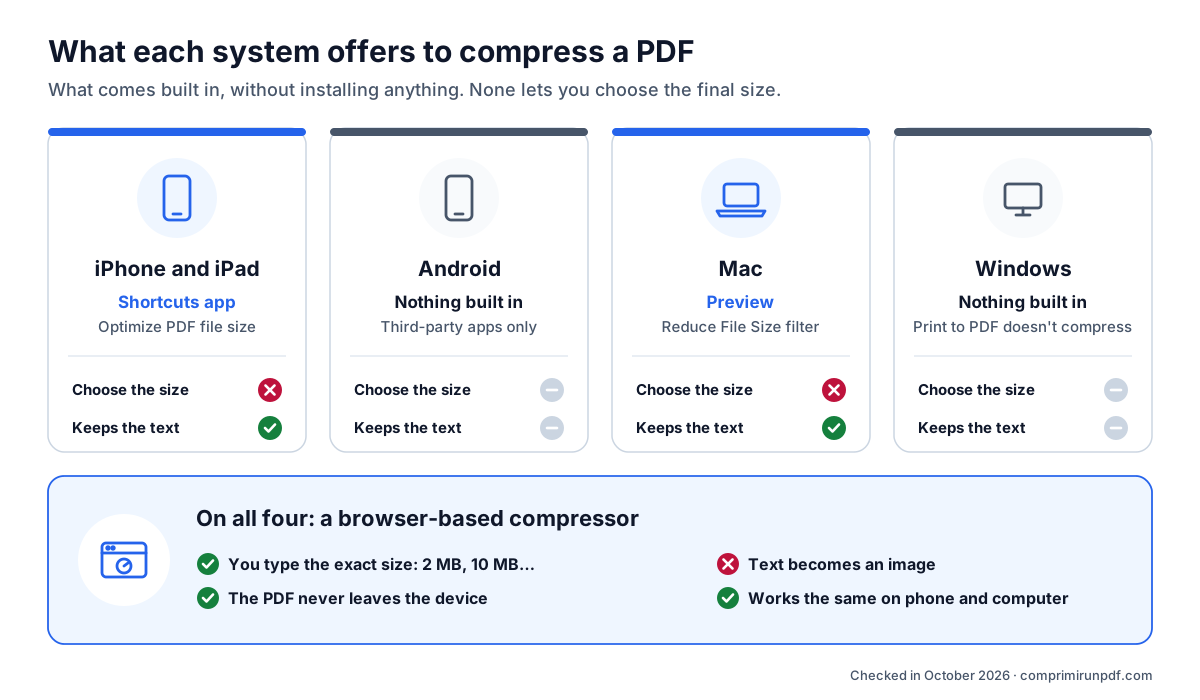
The underlying difference is how each method works. Built-in tools recompress the images inside the PDF and leave the text as it is: a good idea, but the result depends on how the file was made and can't be predicted. A compressor with a target size turns each page into an image and adjusts the resolution until the file fits: it controls the size to the kilobyte, at the cost of text that can no longer be selected. Our guide on why a PDF is so large explains the compression methods in more detail.
How to compress a PDF on iPhone or iPad
With the Shortcuts app, without installing anything
Since iOS 16, the Shortcuts app has included an action that optimizes a PDF's file size by compressing the images inside it (it's called Optimize File Size of PDF). It doesn't show up in any menu on its own: you create a shortcut that uses it once, and from then on you run it from the Share button.
- Open the Shortcuts app and create a new shortcut with the + button.
- Add the action that optimizes the PDF's file size (type “PDF” in the action search) followed by the Save File action.
- In the shortcut's details, turn on showing it when you share and let it accept PDF files.
- Open the PDF in Files or Mail, tap Share and pick your shortcut. Save the result under a new name to keep the original.
Its limits: you can't choose the size or the quality, and the action's own description warns that if the images were already compressed the reduction may not even be noticeable. With camera photos turned into a PDF it usually gains a lot; with a PDF that already came out light from a scanner, little or nothing. Depending on the iOS version, the same feature may also appear when you touch and hold a PDF in the Files app, under Quick Actions.
With an exact size, from Safari
If a form asks for a specific maximum, open the compressor in Safari, tap to pick the PDF from Files or iCloud Drive, type the size and download the result. Safari saves it to the Downloads folder in the Files app, unless you've changed that location in Safari's settings. Everything happens on the iPhone itself: the PDF isn't uploaded to any server.
How to compress a PDF on Android
Android has no built-in way to compress a PDF: on most phones, neither the system nor the preinstalled Google apps such as Files or Drive can shrink an existing PDF. Putting it in a ZIP doesn't help either, because the images in a PDF are already compressed. Your real options are an app from the store or a browser-based compressor.
If you choose an app, check which permissions it asks for and whether it processes the file on the phone or uploads it to its servers: many “PDF compressor” apps are just the front end of an online service. In this guide we explain how to check in a minute with airplane mode.
With the browser, open the compressor in Chrome, pick the PDF, type the size and download it: it ends up in the Downloads folder. If you'll use it often, Chrome lets you install the site as an app from its menu (⋮). Once installed, it appears in Android's Share menu: from WhatsApp, Gmail or Files, you share the PDF with it and it opens ready to compress. After the first visit it even works offline.
How to compress a PDF on Mac with Preview
Preview, the PDF viewer that comes with macOS, can export a PDF through a filter that shrinks its images. These are the steps Apple describes in its help pages:
- Open the PDF in Preview.
- Choose File > Export.
- In the Quartz Filter pop-up menu, choose Reduce File Size.
- Change the name so you don't overwrite the original, then click Save.
It works well with computer-generated PDFs that contain photos, and the text stays selectable. The problem is that it has no settings at all: it always applies the same reduction, and on scanned documents it can leave small print blurry. Apple says so in its help: the result may be lower quality than the original. Always open the exported file and zoom into an area with small print before sending it.
If the reduction falls short or goes too far, on a Mac you can also use the compressor in Safari, Chrome or any other browser, with the exact size you need. And if you compress several at once in Chrome or Edge, you can save them all to a folder you pick just once, without being asked about each file.
How to compress a PDF on Windows 10 and 11
Windows doesn't include any PDF compressor. Microsoft Edge opens and annotates PDFs but doesn't reduce their size, and the trick that circulates online, printing with Microsoft Print to PDF, isn't compression: it creates a new PDF from the print job, with no quality or resolution settings. Sometimes it comes out smaller and sometimes larger, and along the way you lose links, bookmarks and form fields.
The two options that do work are a browser-based compressor —open the compressor in Edge or Chrome, drag in the PDF and type the size— or, if you're comfortable with the command line, Ghostscript. If you install the site as an app from Edge or Chrome, Windows may offer it under Open with when you right-click a PDF.
For advanced users: Ghostscript on Windows, Mac and Linux
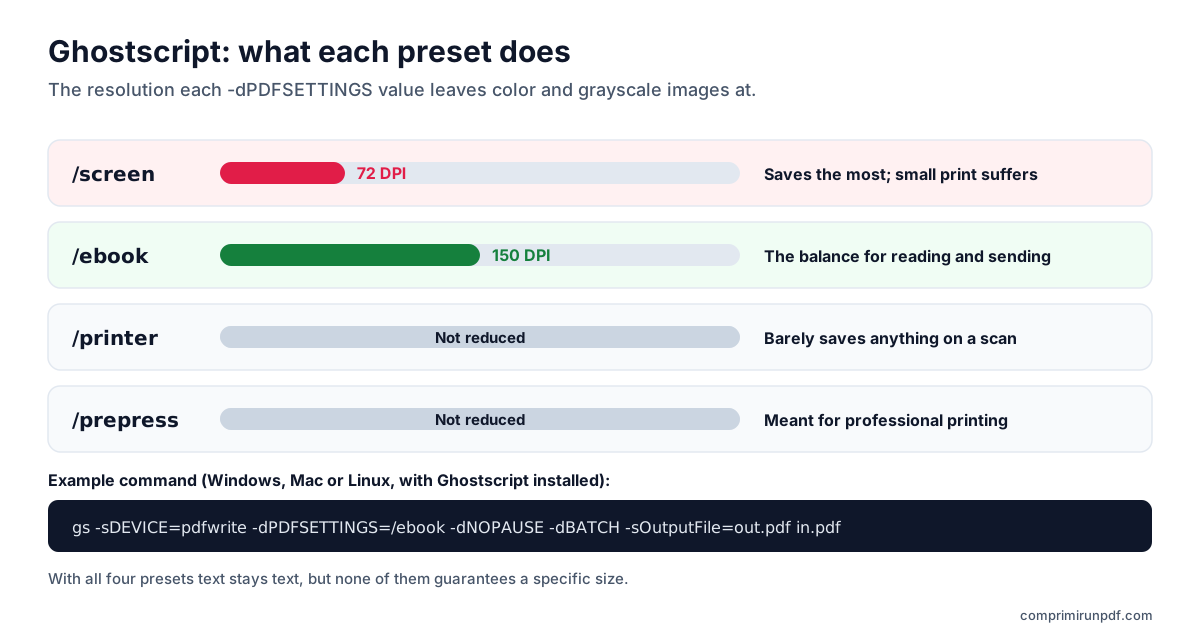
Ghostscript is an open-source PDF and PostScript interpreter that runs on all three desktop systems. With its pdfwrite device it rewrites the PDF and, depending on the -dPDFSETTINGS preset, lowers the resolution of the images without touching the text.
The basic command is gs -sDEVICE=pdfwrite -dPDFSETTINGS=/ebook -dNOPAUSE -dBATCH -sOutputFile=output.pdf input.pdf. On Windows, the console executable is called gswin64c instead of gs.
| Preset | Image resolution | What it's for |
|---|---|---|
| /screen | 72 DPI | Maximum savings; scanned small print suffers |
| /ebook | 150 DPI | The balance for on-screen reading and sending |
| /printer | Not reduced | Printing; barely saves anything on a scan |
| /prepress | Not reduced | Professional printing |
The figures come from the parameter table in Ghostscript's documentation. Like Preview, Ghostscript doesn't aim for a size: if the result is still large, you need a lower preset or to set the resolution by hand (-dDownsampleColorImages=true -dColorImageResolution=100, and the same with Gray for grayscale images) and try again.
Which method to choose
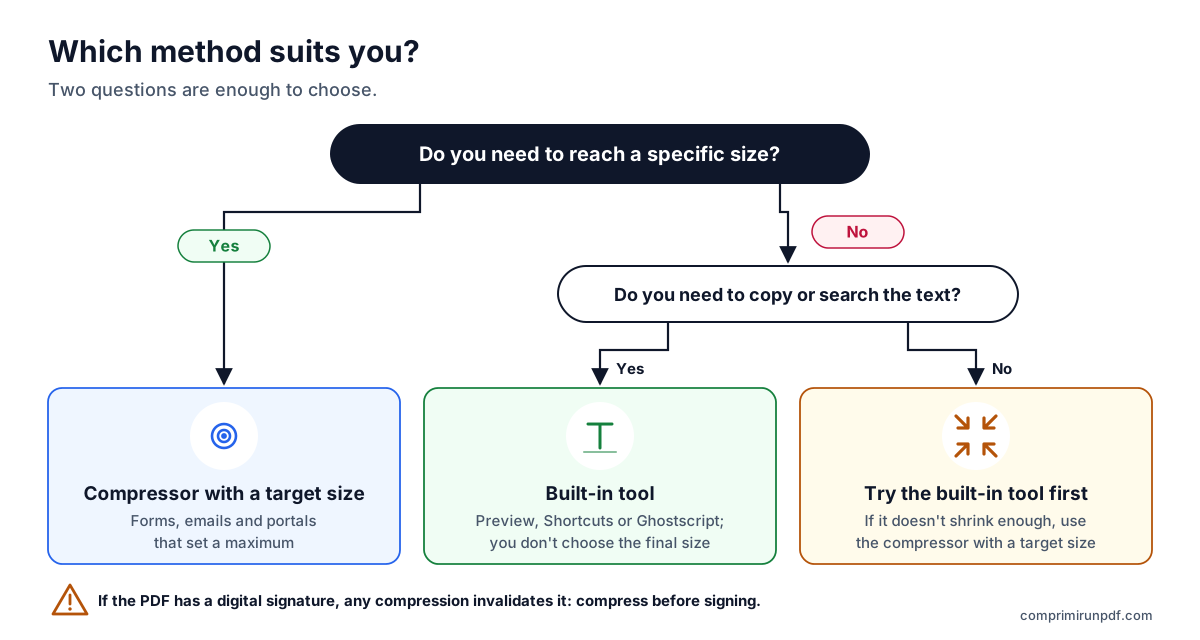
- You're given a maximum size (government portal, job site, email): use a compressor with a target size. It's the only way to get it right first time.
- You need to copy or search the text and the size isn't critical: Preview on Mac, Shortcuts on iPhone or Ghostscript.
- You don't mind which method: try the built-in tool first and, if it doesn't shrink enough, move on to the compressor with a target size.
- The document has an electronic signature: any compression invalidates it. Compress before signing or send the original.
Type the size you need —2 MB, 5 MB, 10 MB— and the tool adjusts your PDF to land just below it. It works the same on iPhone, Android, Mac and Windows, and the file never leaves your device.
Compress a PDF nowFrequently asked questions
Can I compress a PDF on iPhone without installing an app?
Yes. The Shortcuts app, which comes with iOS, has included an action since iOS 16 that optimizes a PDF's file size by compressing its images. It doesn't let you choose the final size, and if the images were already compressed it may barely shrink the file. For an exact size, use a compressor in Safari that works inside the browser.
How do I reduce the size of a PDF on Mac with Preview?
Open the PDF in Preview, choose File > Export, select Reduce File Size from the Quartz Filter menu and save it under a new name. Apple warns that the result may be lower quality than the original, so check that small print is still readable.
Do Windows 10 or 11 have a built-in PDF compressor?
No. Microsoft Print to PDF creates a new PDF when you print, but it has no compression settings: sometimes the result is smaller and sometimes larger, and links and bookmarks are lost. To really shrink it, use a browser-based compressor in Edge or Chrome, or Ghostscript if you're comfortable with the command line.
How do I compress a PDF on an Android phone?
Android has no built-in way to compress a PDF. You can open a browser-based compressor in Chrome, pick the PDF, type the size and download it to the Downloads folder. If you install it as an app, it appears in the Share menu so you can send it PDFs from other apps.
Does compressing a PDF on a phone reduce quality?
It depends on the method, not the device. Built-in tools recompress the images and leave the text untouched. A compressor with a target size turns pages into images: it controls the size to the kilobyte, but the text can no longer be selected. Either way, the lower the size, the more it shows in photos and scans.
Next step
Depending on what you need it for, these pages open the tool with the size already set:
- Compress a PDF to 2 MB, the most common limit on government and job portals.
- Compress a PDF to 1 MB, when the form is stricter.
- Compress a PDF to 10 MB, to email it to any inbox.
If the PDF is going by email, the guide to emailing a large PDF explains how much really fits in Gmail or Outlook. And if you want to know what's taking up space in your file before compressing it, run it through the PDF X-ray, which also works on your phone.
Does the form accept several files? Then it may be better to split the PDF by size than to compress it: the pages aren't touched.
Sources
Other guides you may find useful
- How to split a PDF by size: parts of 2, 5 or 10 MBWhen a portal accepts several files but limits the size of each one, splitting the PDF beats compressing it: the pages stay untouched. Here's how to split it by size rather than by pages, what changes in the document and which other tools can do it.
- How to email a PDF that's too largeGmail, Outlook and Yahoo advertise 25 MB, yet a 20 MB attachment can still bounce. Here are the real limits of each provider, what size to aim for depending on who you're sending to, and the three ways out when the PDF won't fit.
- Why a PDF is so large and how to shrink itText takes up almost nothing: what drives up a PDF's size is scanned images and phone photos. We explain the pixel arithmetic, what each compression method does and which size to choose so the document stays readable.
- Compress a PDF without uploading it to any serverMost online compressors upload your document to someone else's server and ask you to trust that they'll delete it. There's another way to do it, and you don't have to take anyone's word for it: you can check it in thirty seconds.