How to split a PDF by size: parts that stay under the limit, with no loss of quality
When a portal accepts several files but limits the size of each one, splitting the PDF beats compressing it: the pages stay untouched. Here's how to split it by size rather than by pages, what changes in the document and which other tools can do it.
By Robert Bzia8 min read
It happens a lot with online forms: the platform lets you attach several documents, but none over 5 or 10 MB. And compressing an 80-page scanned file down to that size leaves the small print unreadable. Splitting it into two or three files solves the problem without losing anything.
In this guide we explain when to split and when to compress, why cutting by page count doesn't work, how to split by size step by step and what changes in the document when you do. The features of Adobe Acrobat, Preview and qpdf were checked in October 2026 against their official documentation, which we cite at the end.
Split or compress? It depends on the limit
The deciding question is whether the limit applies to each file or to the whole submission. If each document can weigh up to 10 MB and you can attach several, splitting is the best option: you keep the original quality. If everything you send has to fit in 10 MB, splitting won't help, because the parts add up to a little more than the original.
| Difference | Compress | Split |
|---|---|---|
| Files you get | One | Several, as many as needed |
| Quality | Lower: pages are turned into images | The original: pages aren't touched |
| Can the text be copied? | No | Yes |
| Total size | Smaller than the original | A little larger than the original |
| Works if the limit is… | For the whole submission or for each file | Only for each file |
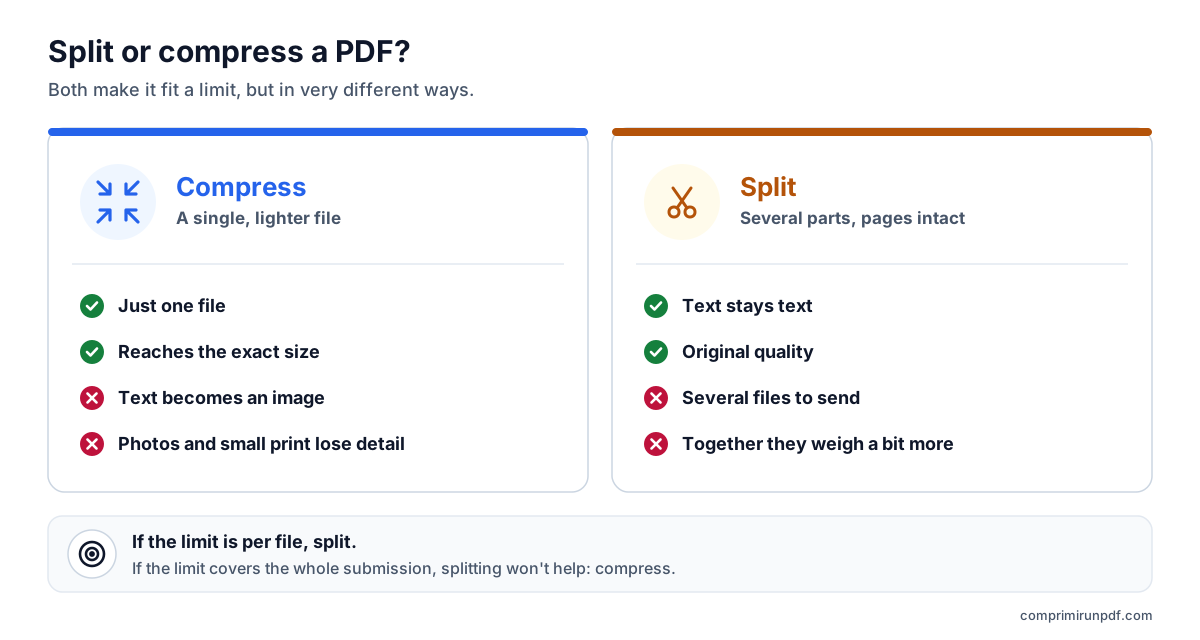
Compressing is still the way out when the document has to go as a single file. In the guide on why a PDF is so large we explain what you lose by doing it and why scans are the heaviest.
Why splitting by page count doesn't guarantee the size
Most PDF splitters cut by pages: every 10 pages, or by the ranges you mark. The problem is that the pages of a PDF don't all weigh the same. A text page generated from Word takes a few kilobytes; a photo or a page scanned in color, one or several megabytes. If the heavy pages fall together, one of the parts goes over the limit even though the others have room to spare.
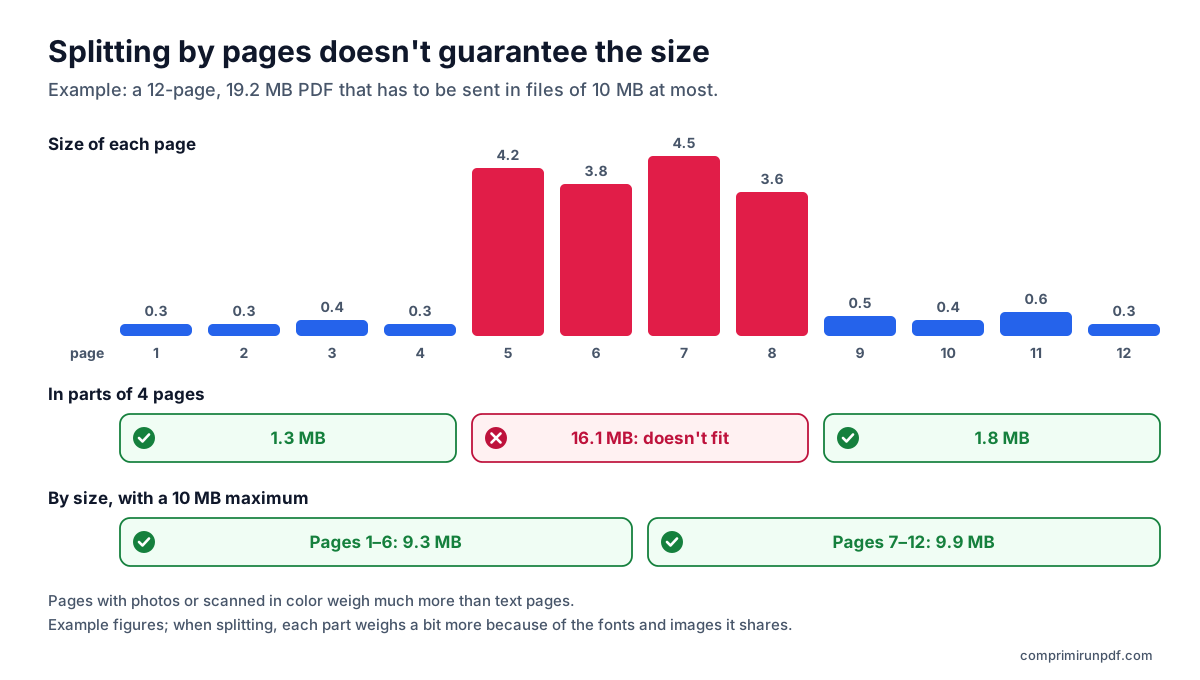
Splitting by size turns it around: instead of fixing how many pages each part has, you fix the maximum size and each part takes all the consecutive pages that fit. That gives you the fewest possible parts and none goes over, with no need to try cuts by hand.
How to split a PDF by size, step by step
- Open the compressor in your browser, on a computer or a phone.
- Drag the PDF in or tap to choose it. You can choose several: each one is split separately.
- Tick the “Split into several PDFs with a maximum size” box.
- Type the limit in “Maximum size per part”: the one the form states, for example 5 MB or 10 MB.
- Press Split PDF and download the parts. They're named after the original followed by “part-1-of-3”, “part-2-of-3”… so they don't get mixed up.
Next to each part you'll see which pages it contains and how much it weighs. In desktop Chrome, Edge and Opera you can save all the parts to a folder you choose just once. On iPhone and iPad the browser only allows one download at a time: use the Download button on each part.
What the tool does under the hood
It copies the pages of the original without recompressing them and builds each part from them. To avoid relying on an estimate, it saves each part and measures it: the size you see is that of the real file. It first works out how many pages fit based on the average page size and then refines the cut with a binary search. Before copying, it leaves each page only the fonts and images it uses, so no part drags along the resources of the whole document.
If a single page already weighs more than the maximum —a full-page photo, for example—, that page is compressed so it fits and you're told about it. The rest stay intact. Everything happens on your device: the PDF isn't uploaded to any server, something you can check in a minute with this guide.
What changes in the document when you split it
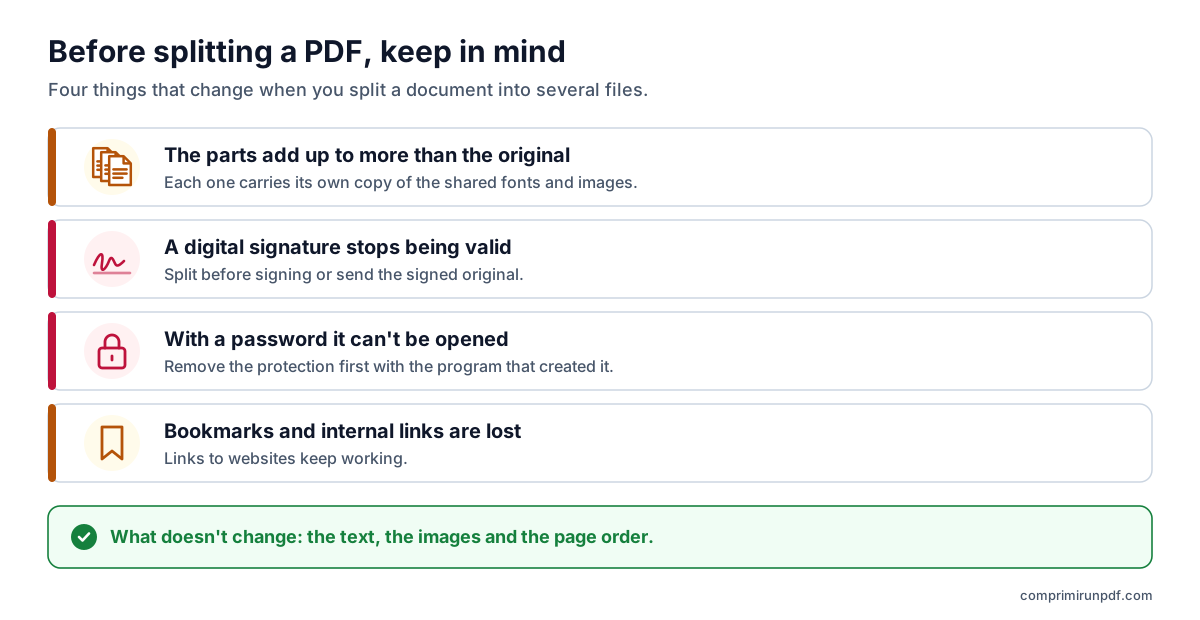
- The parts add up to more than the original. Fonts and images shared by several pages are stored only once in the original, but each part needs its own copy. The tool tells you how much more they add up to in total.
- A digital signature stops being valid. The signature protects the whole file; once it's split, no part keeps it. If the procedure requires a signature, split first and then sign each part.
- Password-protected PDFs can't be opened. Remove the protection first with the program that created it.
- Bookmarks and internal links are lost. The sidebar outline and links that jump to another page stop working, because that page may be in another file. Links to websites are kept.
Other ways to split a PDF
| Tool | Splits by size? | Price | Uploads the file? |
|---|---|---|---|
| This tool, in the browser | Yes | Free | No |
| Adobe Acrobat desktop | Yes, by file size | Paid | No |
| Adobe's online splitter | No, by page ranges | Free | Yes |
| Preview (Mac) | No, pages are separated by hand | Included with macOS | No |
| qpdf (command line) | No, every so many pages | Free, open source | No |
Adobe Acrobat
Acrobat is one of the few applications that split by size. In the desktop version, open the PDF, choose Organize Pages > Split, pick splitting by file size and type the maximum; in Output Options you decide where the parts are saved and what they're called. It can also split by number of pages or by top-level bookmarks, which is handy for separating a book into chapters. It's a feature of paid Acrobat, and the free splitter on Adobe's website cuts by pages, not by size.
Preview on Mac
Preview doesn't split by size, but it lets you pull pages out into a new PDF. Show the thumbnails with View > Thumbnails, select the pages (hold Command to pick several) and drag them to the desktop: according to Apple's help, this creates a new PDF with them. You'll have to check the size of each part yourself afterwards, in the file's info.
qpdf, for the command line
qpdf is a free tool for Windows, Mac and Linux. qpdf --split-pages=10 input.pdf output.pdf creates a file every 10 pages, with names like output-01-10.pdf, and qpdf input.pdf --pages . 1-25 -- part1.pdf extracts a specific range. Its documentation warns that bookmarks and other document-level features aren't carried over to the split files. And it doesn't look at the size either: if a part goes over, you have to try again with fewer pages.
Printing some pages as a PDF
On any system you can print just a range of pages and choose “Save as PDF” or “Microsoft Print to PDF” as the printer. It works as a stopgap, but links and form fields are lost, and you don't control the size of each part.
What maximum size to set for each part
- Online form or government portal: the per-file limit the page states, as it is. Each part is measured before it's delivered, so there's no need to leave a margin.
- Email: an email with a 25 MB limit takes about 18 MB of attachments, because they travel encoded, and the limit counts all the attachments in the message. Send each part in its own email or adjust the maximum so they fit together. We explain it in the guide to emailing a large PDF.
- If the limit is for the total rather than for each file: splitting won't help, because the parts add up to more. Compress the document to a target size.
- You get more parts than the form accepts: raise the maximum if you can or combine both: compress the PDF first and then split the result.
Type the maximum size per part, tick “Split into several PDFs with a maximum size” and get as many files as needed, with the pages intact. The PDF never leaves your device.
Compress a PDF nowFrequently asked questions
How do I split a PDF into parts under 10 MB?
With a tool that splits by size rather than by pages. In this one, tick “Split into several PDFs with a maximum size”, type 10 MB in “Maximum size per part” and press “Split PDF”. You get as many files as needed, with the pages in order, and each one is measured before it's delivered so none goes over 10 MB.
Does splitting a PDF reduce its quality?
No. The pages are copied as they are, without recompressing their images, so the text stays text and photos keep their resolution. The only exception is a page that on its own already weighs more than the maximum: that page is compressed so it fits, and the tool tells you.
Why do the parts add up to more than the original PDF?
Because fonts and images repeated across several pages, such as a logo or a typeface, are stored only once in the original, but each part needs its own copy. The difference is usually small in scanned documents and larger in documents with many fonts.
Can I split a digitally signed PDF?
You can split it, but no part will keep a valid signature: the signature protects the whole file and any change invalidates it. If the procedure requires the signed document, split first and then sign each part, or send the signed original if the limit allows it.
Can I split a PDF by size for free and without uploading it?
Yes. This tool splits by size inside the browser, with no sign-up and without sending the file to any server. Adobe Acrobat can also split by file size, but it's paid software, and the usual free tools, such as qpdf or Preview on Mac, split by pages and don't check the size.
Next step
If you'd rather have a single file, these pages open the tool with the size already set:
- Compress a PDF to 10 MB, to send it by email to any inbox.
- Compress a PDF to 5 MB, a common limit on online-services platforms.
- Compress a PDF to 2 MB, the most frequent maximum on job portals and forms.
If you're doing it from your phone, the guide to compressing a PDF on iPhone, Android, Mac and Windows goes over what each system offers. And if you want to know what takes up space in your file before splitting it, run it through the PDF X-ray.
Sources
Other guides you may find useful
- How to compress a PDF on iPhone, Android, Mac and WindowsMac and iPhone have a built-in way to shrink a PDF; Android and Windows have none. And none of them lets you choose the final size. We explain what each option does, step by step, and how to hit an exact size on any device without uploading the file.
- How to email a PDF that's too largeGmail, Outlook and Yahoo advertise 25 MB, yet a 20 MB attachment can still bounce. Here are the real limits of each provider, what size to aim for depending on who you're sending to, and the three ways out when the PDF won't fit.
- Why a PDF is so large and how to shrink itText takes up almost nothing: what drives up a PDF's size is scanned images and phone photos. We explain the pixel arithmetic, what each compression method does and which size to choose so the document stays readable.
- Compress a PDF without uploading it to any serverMost online compressors upload your document to someone else's server and ask you to trust that they'll delete it. There's another way to do it, and you don't have to take anyone's word for it: you can check it in thirty seconds.